Product updates

Changelog

Follow new features, improvements and smaller fixes that make Cobrief better for tender work.

IntegrationsAI agentMarket insightsPipelineTender searchProposalsUser management

Integrations on one page

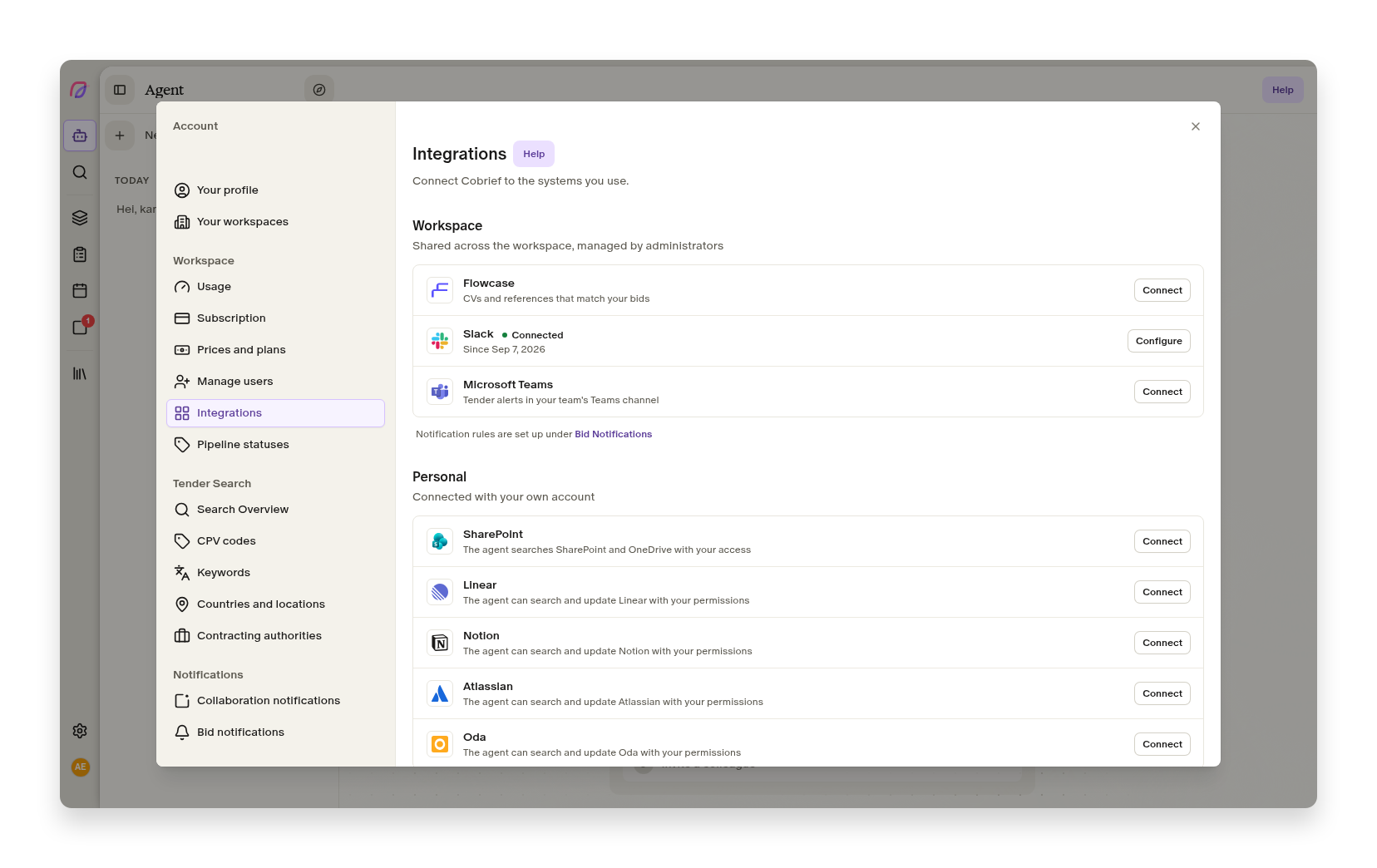
The Integrations tab in Cobrief with Flowcase, Slack, Microsoft Teams and SharePoint as a row list

Slack and Teams have long been set up under Tender alerts, while the Integrations tab showed only some of the systems you actually connect Cobrief to. If you wanted to check whether Slack was still connected, or who had connected SharePoint, you had to know where to look. Now it is all on one page.

Every integration in one list

The Integrations tab has been rebuilt as a single row list, split into Workspace and Personal. Flowcase, Slack and Microsoft Teams are shared across the workspace and managed by administrators. SharePoint connects with your own account, and gives the agent access to the documents you have access to yourself.

Each row shows the name, a short explanation of what the integration does for you, and its status. If it is connected you see a quiet dot along with the account and date, and the buttons sit right there in the row: Configure and Disconnect, with no hidden menus to dig through. If access has lapsed, the row says so immediately, with an explanation and a button to reconnect. The confirmation when you disconnect now tells you what actually happens to your alerts.

Alert rules still live under Tender alerts, and there is a link to them at the bottom of the page so nobody searches in vain. An overview of what Cobrief connects to is in the help centre, along with the setup for alerts in Microsoft Teams.

The agent points out what is not connected

If something is still unconnected, a discreet drawer sits below the composer on the agent surface: "Connect Cobrief to your apps", with the logos of whatever is missing. Hover a logo and the text switches to what you get out of it, for example alerts about new tenders in Teams. Click, and you go straight to where the connection is set up.

The drawer disappears on its own once everything is connected, and you can hide it with the cross if it is not relevant to you.

Improvements in this release
  • Market insights

    Email, phone and website in the insight panels are clickable, so you get in touch with the supplier or buyer directly.

  • Proposals

    The empty agent chat in the bid room has a Quality assurance category with suggestions for the rounds before submission: proofreading, checking against the requirements, risk analysis and mandatory requirements.

  • AI agent

    The Agent button shows the status of the task it opens: that the agent is working, that it is waiting for an answer, or that it finished while you were somewhere else.

  • Pipeline

    You can open the pipeline status settings straight from the pipeline, instead of finding your way there via the workspace settings.

  • Tender search

    View options in search now live in the address, so a link carries the way you were looking at the results.

  • User management

    Relative timestamps show the full date and time when you hover them.

Smaller fixes and polish
  • Integrations

    Lost Slack access is now shown even if you have no alert rules set up.

  • Pipeline

    A custom status can be archived once the tenders have been moved off it.

  • Tender search

    Fixed sorting and the result counter in the search summary.

  • Tender search

    An error in the test alert no longer locks the save button, and the ghost row when creating an alert rule is gone.

  • Integrations

    New exemption codes for award criteria from Doffin are now read correctly.

  • Proposals

    Submission deadline is used consistently as the term in the bid room.

ProposalsTender searchUser managementAI agentMobile

Keyboard and safer actions

The command palette in Cobrief with the page's own actions, navigation and key hints along the bottom

If you work in Cobrief all day, you would rather not move your hand to the mouse just to change page or start a new tender. At the same time, some actions did serious things in one click without asking, such as restoring an old version of a document everyone else was working in. The past two weeks went to both.

The command palette takes you where you are going

⌘K, or Ctrl+K on Windows, opens the palette anywhere in the app. It now carries the page's own actions too, not just navigation. When you are in search, Hide side panel and New tender sit where you expect them, alongside Ask the AI agent.

Key hints look the same across the app: the key first, the explanation after. Windows users see Ctrl where ⌘ used to be hardcoded. As soon as you start typing, the selection jumps back to the first hit, so Enter does what you expect, including after you have cleared the search field and typed something new.

The shortcuts are collected in the help centre.

Actions you cannot undo ask first

Restoring from the version history used to write back the whole document, for everyone who was in it, in one click and with no explanation. Now a confirmation names the date you are restoring to, and the preview says clearly which version you are looking at. The version list has the full date on each entry and a badge on the current one.

Error messages no longer vanish before you have had a chance to read them either. Notifications have a close button, handle several lines of text, and errors carrying a reference ID stay until you close them yourself.

And an important fix for everyone who submits on Word templates: exporting filled-in templates could truncate the document and lose answers if a field spanned several paragraphs. That is fixed, and filling in templates now keeps the whole content.

Accessibility across the app
  • User management

    The collapsed menu rail can be operated with the keyboard.

  • Proposals

    Edit and delete on comments are reachable with both keyboard and touch.

  • User management

    Modals have accessible names, and tables tell assistive technology how they are sorted.

  • User management

    Tooltips are tied to the button they belong to, so screen readers read them out.

  • Tender search

    The remove button on filter chips in the insight panels can be reached with keyboard and touch.

  • User management

    Icon buttons without visible text have names, and each action uses one and the same icon across the app.

  • User management

    Grey tones and text sizes have been reviewed for legibility, in both light and dark mode.

Smaller fixes and polish
  • Proposals

    Enter behaves the same way in every comment field.

  • Proposals

    A document that fails to load shows a skeleton and "Try again" instead of an empty page.

  • Proposals

    Uploads no longer disappear quietly if the file dialog survives a page refresh.

  • Proposals

    Tasks in the bid room are sorted server-side, and the board view has visible filters and search.

  • Proposals

    The move-to-folder dialog works again.

  • Mobile

    The upgrade modal is usable on a phone.

  • AI agent

    The knowledge base shows the correct "Last modified".

  • Tender search

    Loading states in logged-out search and on the tender page are fixed.

User managementTender searchProposalsAI agentBrief

Dark mode

Tender search in Cobrief in dark mode, with filters and a list of results

Tender work is screen work, and for many people the day stretches well past office hours. Dark mode has been one of the most requested things from you, and now it is here, across the whole app.

You choose between system, light and dark

The setting sits in the account menu in the bottom left and under Your profile. The two stay in sync, so you can switch wherever you happen to be, without hunting for the "right" place to do it.

Choose to follow the system and Cobrief changes along with your machine. Choose light or dark and it stays that way across sessions and any device you log in on. The whole app is covered: search, pipeline, tasks, calendar, bid rooms, market insights and the agent surface.

Documents are a deliberate exception. Tender documents, bid texts and templates keep a paper-white background even in dark mode, because that is how the text will actually look when it is submitted. You should never have to guess how a paragraph will read at the buyer's end.

We went through contrast and legibility in both modes along the way, rather than simply inverting the colours. Status colours, badges, tables, search highlights and form controls have their own values for dark backgrounds, and the borders around buttons and fields are strong enough to show where you can click. In a few places light mode got better from the same work: selected rows and card shadows are clearer than before.

Other improvements in this period
  • User management

    The main menu can be pinned open, so you see the names of the menu items instead of just icons. The choice is remembered for next time.

  • Proposals

    You can create a fill-in template straight from the bid room, instead of going via a task or the agent.

  • AI agent

    If the workspace runs out of AI capacity you now get an explanation with the reset date and a way forward, plus a warning before you hit the limit.

  • AI agent

    AI capacity is now enforced the same way across all AI features, not just in the chat.

  • AI agent

    The agent uses Claude Sonnet 5 as its default model.

  • Brief

    Evaluation criteria are generated faster.

  • User management

    Pricing and plans has been cleaned up into a plain plan picker with a slider for AI capacity, and usage has its own tab.

  • Proposals

    Tender documents are available even when the side menu is collapsed, and the whole row is clickable.

Smaller fixes and polish
  • User management

    The error page is friendlier, with Coby and a way back.

  • Tender search

    Private tenders show a meaningful tab title.

  • Tender search

    Fixed a validation error for procurement codes with older organisation numbers.

  • Tender search

    The side menu highlights the inbox by default again.

  • Proposals

    Task filters no longer wrap over the header in narrow panels.

  • Brief

    The brief no longer shows text while the analysis is still running.

  • User management

    The appearance options in the profile dialog can be clicked across the whole row.

  • AI agent

    Action links containing parentheses in the agent chat point to the right place.

  • User management

    Fixed an issue where the subscription could show the wrong dates.

AI agent

Images in the agent chat

The agent chat with an image attachment in the composer, alongside the question being sent

Sometimes it is quicker to show than to explain. A requirement buried in a tender document, a row in a price sheet that does not add up, a table from the buyer's portal: typing it out takes time, and the details that matter are often the ones lost in the retyping.

You can attach images straight in the chat

Paste a screenshot with Cmd+V, drag a file into the chat, or pick it from the file picker. The image sits as an attachment next to your message, and you can remove it again before you send.

The agent reads the image along with your question, so you can ask about what you are actually looking at: what does this clause mean, can you find the discrepancy in this table, help me answer this requirement. The image stays in the conversation, so it is still the context you are working from several messages later.

Improvements to attachments
  • AI agent

    Images are handled alongside the other files you attach to a conversation, and appear as their own cards with upload status.

  • AI agent

    Upload error messages are translated and explain what went wrong.

AI agentProposalsMobile

New agent surface with Coby

The agent surface while the AI agent works, with the status line, product tips, the message queue and Coby perched on the edge of the composer

Handing a task to the AI agent and then watching a spinner is a poor use of your time. You cannot tell whether it understood the task, how far it has come, or whether waiting is worth it. We have rebuilt the whole agent surface around two questions: what is happening right now, and what can you do in the meantime.

You see what the agent is doing while it does it

The status line tells you what the agent is working on, how long it has been at it, and how many tool calls it has made. If you want to interrupt, Esc sits right there in the same line as a visible reminder.

Open the reasoning and it reads like a story rather than a raw log. Repeated steps collapse into a single line with a count, "Searched the knowledge base · 3 times", instead of quietly disappearing. The steps hang together as a tree, and long thoughts are cut with an explicit "Show N hidden lines" rather than being silently truncated. The heading summarises the turn as a whole, not whichever step happened to come last.

While you wait, the surface shows short tips about things in Cobrief you may not have picked up yet. And when the agent uses a skill, such as the built-in skill for writing bids, it is named in the chat.

You can write the next message while Coby works

If you have already thought of your next question, write it straight away. Press Enter while the agent is working and the message is queued behind the composer instead of interrupting it. The queue takes several messages, and you can edit or remove them for as long as they sit there. When you really do want to stop, use Esc or the stop button.

If the agent asks a question along the way, you can minimise it to a slim strip above the composer, read the context behind it in peace, and bring the question back up. Before, you had to close the card to read the summary, which left the question unanswered.

Coby, peeking over the edge of the composer, is not just decoration. He shows whether the agent is thinking, waiting for you, or done.

The agent surface is documented in the help centre.

More improvements to the agent
  • AI agent

    Tables and data blocks in answers render as real tables and code blocks with a copy button, instead of running text.

  • AI agent

    Long choice lists in the agent's questions have search and clearer keyboard navigation.

  • AI agent

    Every agent answer has a copy button, and the last answer can be regenerated.

  • AI agent

    The tab title tells you when the agent has finished or is waiting for an answer, so you can work in another tab while it runs.

  • AI agent

    Attachments appear as their own cards with upload status, and upload errors are translated and understandable.

  • AI agent

    Below the composer, the suggestions cross-fade into keyboard shortcuts as soon as you start typing.

  • AI agent

    The welcome screen and "Recent projects" have been tightened up to match the rest of the surface.

  • Proposals

    The approval card in bid work now follows the same pattern as the other question cards.

Smaller fixes and polish
  • Mobile

    Fixed an issue where the agent surface could not be scrolled vertically on mobile.

  • AI agent

    The stop button releases the composer immediately, and no longer lights up when it is disabled.

  • AI agent

    The seconds counter in the status line no longer resets when you reload the page.

  • AI agent

    The out-of-AI-capacity notice stacks instead of being cut off on narrow screens.

  • AI agent

    Long question titles are clamped instead of bursting the dialog.

  • AI agent

    Fixed an issue where empty agent threads could be created.

  • AI agent

    The agent chat scrolls correctly again while answers stream in.

PipelineIntegrationsAI agentTender searchUser management

Feedback Bonanza

A couple of weeks ago we kicked off "Feedback Bonanza" and asked you about the things, big and small, that get in the way of tender work in practice. The suggestions poured in, and we have worked our way through a lot of them. Several of the improvements are already live.

You can now build the pipeline around your own process

You can create your own tender statuses with names, icons, and order that match how your team actually works. You manage them under Pipeline statuses in the settings.

Instead of forcing your process into a fixed template, you let the pipeline mirror the steps you already use, from the first assessment to the submitted bid. That makes the status overview easier to read at a glance, and it gets clearer which tenders are actually waiting on something.

You can now let the agent work directly against SharePoint and OneDrive

Connect SharePoint and OneDrive with your Microsoft login, and the AI agent can find and use relevant documents directly in your bid work.

Templates, previous responses, and documentation are often scattered across Microsoft 365. Now the agent pulls what it needs from where it already lives, without you uploading and downloading files manually. You stay in control of what gets shared, but skip the copying back and forth.

More improvements from Feedback Bonanza
  • User management

    When you are set as responsible for a tender or assigned a task, you now get notified both in activities and by email.

  • Tender search

    Personal filters can now be used in more places across Cobrief to find exactly the tenders, buyers, or tasks you are looking for.

  • Tender search

    You can save filter combinations as your own searches and get an email alert when new tenders match.

Thanks to everyone who has sent in suggestions. You are the ones who decide what we tackle, and please keep it coming via the help button in the app.

AI agentProposalsTender searchPipelineMarket insightsOnboarding

Cobrief 2

Cobrief 2 launch

Cobrief 2 is the biggest update we have shipped, and it changes how an entire day of tender work feels. You used to jump between search, evaluation, writing and quality assurance in a separate tool for each step. Now you have one connected workspace and a digital bid manager that carries the work forward for you.

You can now hand the agent a task and get the work done

At the heart of Cobrief 2 is an AI agent that works as a bid manager alongside you. You give it a concrete task, and it takes it from there: it checks whether you qualify, looks at who you are competing against, brings in learning from earlier competitions and works out what the buyer weighted last time. Instead of starting every evaluation from scratch, you get back a decision basis you can trust.

You can now write the proposal together with the agent

Once you decide to move forward, the agent helps with the proposal itself. It drafts text based on the requirements, fills in pricing forms, finds relevant CVs and prepares a short summary for the bid/no-bid meeting. You keep control and the editorial judgment, but you no longer have to build every document from the ground up.

Before submission, it helps with the check questions that often decide the outcome: is anything missing, do price and delivery time line up, and does the proposal read clearly from the buyer's perspective? This is the final pass many teams never have time for, and now it is built in.

You get a workspace built around the process

At the same time, we have rebuilt the workspace around the way the best teams work. The new search page makes it faster to find relevant opportunities, pipeline gives a clear view of what is in progress, the task page collects the work the agent does for you, and the calendar surfaces deadlines before they turn into stress. Everything connects, from the first match in search to a finished, submitted proposal.

Improvements in this version
  • AI agent

    Coby can now take a concrete task forward through evaluation, research, drafting and quality assurance.

  • Proposals

    Drafts, pricing forms, CVs and bid/no-bid summaries are more tightly connected.

  • Tender search

    Search and evaluation are built for faster decisions about which tenders the team should pursue.

Smaller fixes and polish
  • Pipeline

    The pipeline view makes it easier to see which proposals need follow-up now.

  • Market insights

    The insights module can be used freely to research buyers and competitors.

  • Onboarding

    Cobrief 2 rolls out to customers over the next week, and we will let you know when it is ready for you.

Want to try the newest Cobrief improvements?

Over 2,500 companies use Cobrief to find, evaluate and win more tenders.

Try Cobrief for free