Product updates
Subtasks in fillable templates
Assign template fields to colleagues. Each subtask has its own status, assignee and deadline, with progress tracked across the whole template.
A fillable template can contain hundreds of fields. When the whole template is one task, it is hard to see who should answer what. Your team can now track each text field as a separate subtask.
Assign work field by field
Each subtask has its own status, assignee and deadline. One colleague can handle technical answers while another works on references or declarations. This applies to text fields in Word and Excel templates, including templates you upload yourselves.
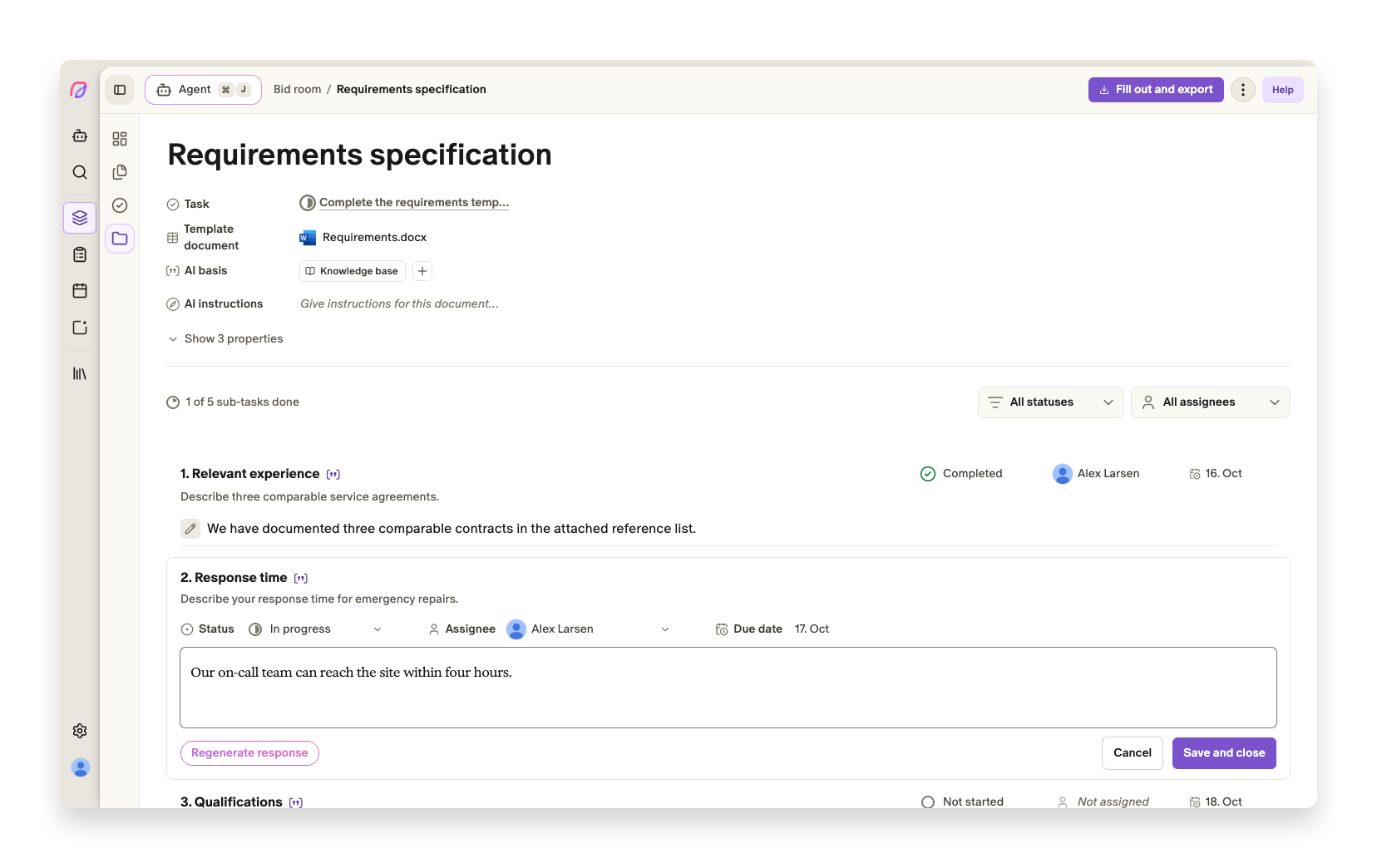
Filter by assignee or status to find the fields you need to work on. Progress shows how many subtasks are complete, both inside the template and on the task for filling out the whole template. Your team gets a shared overview without searching through every answer.
Subtasks assigned to you also appear under My tasks. When a colleague assigns you a field, an activity notification opens the right subtask. You go straight to the answer you need to work on.
Status, assignee and deadline are preserved for matching fields when the template's content is extracted again. A field can be anything from a technical answer to a date, place or signature. That is why we call them subtasks rather than just requirements.
Read more about fillable templates and tasks in the bid room.
Smaller bid workflow fixes
- ProposalsFixed an issue that could leave My tasks empty.
- Proposals
Price sheet filling handles interrupted AI responses more reliably.