Product
Welcome to the new Cobrief
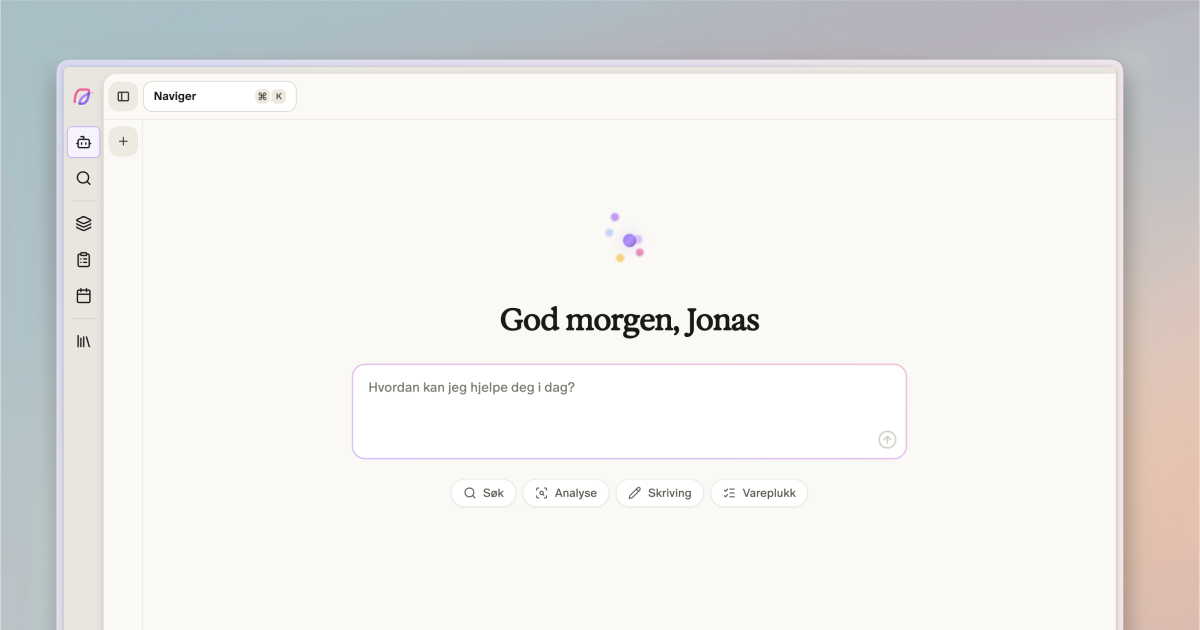
Cobrief 2 is now available for all users. Here's a walkthrough of what's new, what's moved, and how to get started with the new version of the AI-powered tender management platform.
Cobrief 2 is now available for all users. The navigation has been rebuilt, the AI agent has taken center stage, and the tools you use every day are organized in new ways. Here's what you need to know.
Agent – your new landing page
When you open Cobrief, you now land on Agent. It's the AI assistant you may know from the bid room – but now as a standalone, central tool available everywhere.
The Agent page gives you a conversation overview organized by time, with the ability to filter by tender. Here you start new conversations, continue existing threads, and get help with tasks across all of Cobrief. The agent can:
- Write and edit proposal documents – cover letters, solution descriptions, responses
- Fill in buyer templates based on your knowledge base
- Check that all requirements in the specification are covered
- Retrieve CVs from Flowcase and use them directly in the text
- Conduct market analysis – find competitors, past winners, and contract values
- Create proposals with document structures based on the tender documentation
The agent is also available as a collapsible panel on the left side – regardless of which page you're on. You can resize the panel, and it follows you as you navigate between pages. On mobile, it opens as an overlay at the bottom of the screen.
New navigation
The navigation is compressed into an icon menu on the left side that expands when you hover over it. You'll find five main sections at the top: Agent, Search, Pipeline, Tasks, and Calendar. At the bottom you'll find Library and Settings.
The structure is new, but the content is familiar. What was previously called "Bids" and "Procurements" is now combined under Pipeline. "My AI" is now called Library. Market insights can now be found under Search.
Pipeline – everything on one board
The procurement and bid overviews have been merged into Pipeline. Here you'll find all your procurements organized by status, with three different views:
- Cards displays procurements as visual cards with key information.
- List gives you a detailed table with sortable columns.
- Board is a kanban view where you drag procurements between statuses.
The statuses have been renamed. "Planned" is now Go, and "Refrain" has been replaced with No-go. The Pipeline sidebar lets you navigate between status groups, and you can move procurements with drag and drop.
Reports can be found under Results in Pipeline.
Filtering is more powerful than before. Active filters are displayed as badges, and filter and sorting choices are saved in the URL so you can share a specific view with colleagues.
Search – a dedicated page for finding procurements
Search now has its own page with dedicated filtering. You can search across procurements, buyers, and suppliers from one place. The filter menu on the left lets you narrow results with facets, and your search history is easily accessible.
Previously, search was integrated into the main view. The new, separate search page makes it easier to explore the market and find relevant notices without leaving your pipeline workflow.
Tasks – overview across all bids
The new Tasks page gathers tasks from all your bids in one place. At a glance, you can see what remains, who is responsible, and which deadlines are approaching.
The Tasks page has two views: table and board (kanban). You can filter by phase, type, assignee, status, and due date. Column visibility is customizable, and filters are saved in the URL.
Previously, you had to open each individual bid to see its tasks. Now you have a full overview from the main navigation.
Calendar – deadlines and events at a glance
Calendar is entirely new. It gives you a timeline overview of all deadlines and events related to procurements and tasks. The sidebar lets you filter, and the view is optimized for both desktop and mobile.
Library – your knowledge base in one place
What was called "My AI" is now Library. Here you'll find the knowledge base where you upload documents the AI uses in your bid work, AI instructions for customizing how the agent writes, custom questions the AI suggests based on the specification, and pricing sheet filling for AI-assisted price form completion.
The functionality is the same, but its placement in the navigation makes it clearer that Library is where you shape the AI.
Support chat has moved
The Intercom bubble in the bottom right corner is gone. The support chat is now integrated into the Help buttons you'll find throughout the application. Click the Help icon wherever you are to access both help articles and live chat with us.
Mobile
The entire interface is built to work on mobile. Side panels open as draggable overlays, the navigation adapts to screen size, and all main features are accessible from the mobile view.
Summary – what's changed?
| Before | Now |
|---|---|
| Bids / Procurements | Pipeline |
| Planned | Go |
| Refrain | No-go |
| My AI | Library |
| AI chat (in bid room) | Agent (everywhere) |
| Intercom bubble | Help buttons |
All changes are now active for you. Explore the new navigation, try the Agent panel on the left side, and take a look at the Pipeline view with cards, list, or board.
Questions? Reach out via the Help buttons in the app or at kontakt@cobrief.com.